A lot of restaurant owners already have the hardware for a POS sitting in a drawer. An iPad from the last system. A manager's Android tablet. Phones in every server's apron.
A bring-your-own-device (BYOD) POS lets you put those to work instead of buying a new set of proprietary terminals. This guide explains what BYOD means for a restaurant, what you still need to buy, and how to set it up so it holds up on a busy Saturday.
What "bring your own device" means for a restaurant POS
With a traditional POS, the software and the hardware come as a package. The terminals are made for that system, and often only work with it.
With a BYOD POS, the software is an app. You install it on consumer devices, such as iPads, iPhones and Android tablets or phones, and the POS runs there. Your menu, orders and reports live in the cloud, so every device sees the same information.
That changes a few things:
- You choose the hardware. Use what you own, or buy devices from any retailer.
- Devices are replaceable. If an iPad breaks, you can replace it with another compatible device instead of waiting for a proprietary unit.
- Your hardware is not tied to one provider. If you ever switch systems, the iPads are still yours.
Which devices Platter runs on
Platter runs on iPad, iPhone and Android. Here is how device pricing works, per location per month in CAD, before tax:
| Device | Monthly cost |
|---|---|
| Main POS iPad | Included in your plan |
| Extra iPad or tablet | $10 |
| Phones running the POS | Free, unlimited |
| Kitchen display (KDS) | $15 |
| Customer-facing display | $15 |
| Receipt and kitchen printers | Free, unlimited |
Hardware is not included in a plan, so you supply the devices themselves. The full list is on the hardware page, and plans are on the pricing page.
Because phones are free and unlimited, you can give every server a handheld without adding to your monthly bill.
What you still need
BYOD covers the screens your team taps on. A working restaurant set-up needs a few more pieces.
Card terminals
In Platter, card payments are processed by Moneris, at Moneris preferred pricing for Platter customers, subject to Moneris approval. Moneris terminals pair with Platter over Wi-Fi, and the amount goes from the bill straight to the terminal. Moneris confirms the terminal options with your merchant account and bills terminal rental directly. Read more about payment processing in Platter.
Printers
Platter works with Epson receipt and kitchen printers. Items are routed by menu category, so drinks print at the bar and mains print on the line. Printers carry no monthly device fee. See the Epson integration for how routing works.
A stable internet connection
A cloud POS needs the internet to sync orders between devices. Plan for a reliable business connection and Wi-Fi that covers every spot where a device or terminal is used. Offline mode is coming soon in Platter; until then, treat your internet connection as part of your POS. The glossary entry on offline mode explains what to ask any provider about outages.
Optional screens
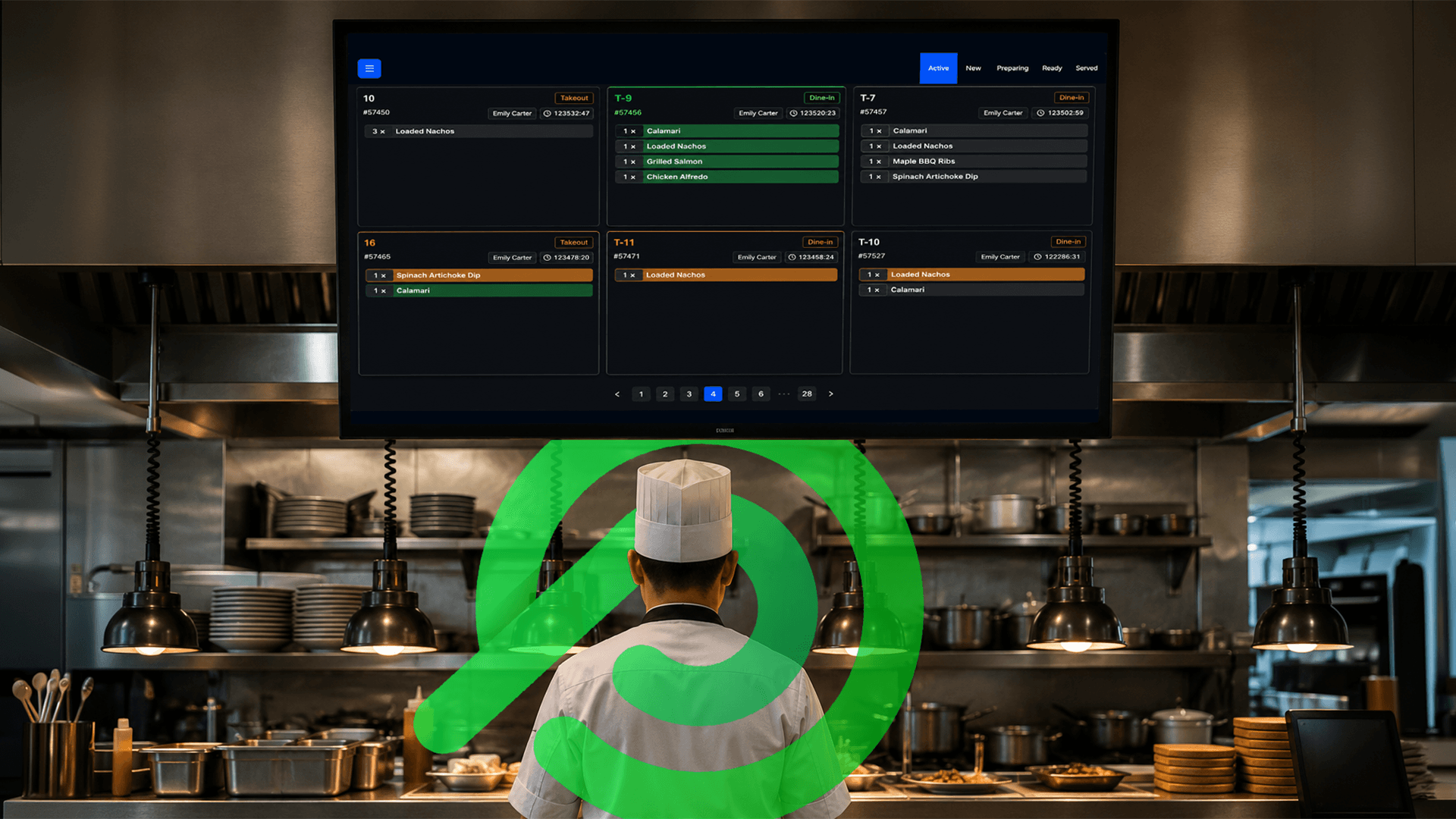
- Kitchen display: shows tickets by station and moves them from Preparing to Ready. $15 a month per screen. You can run it on its own or alongside Epson kitchen printers.
- Customer display: shows guests their items, tax and total before they pay. $15 a month per display.
Tap to Pay on phones
Tap to Pay in the Platter mobile app, powered by Stripe, turns a phone into a contactless card reader. Guests tap a card or digital wallet on the back of the server's phone, at the table, on the patio or at the curb, with no separate terminal.
Tap to Pay works on supported iPhone and Android phones with NFC, and your onboarding specialist confirms your devices. All other card payments in Platter are processed by Moneris. More on the Tap to Pay integration.
Tableside ordering on phones
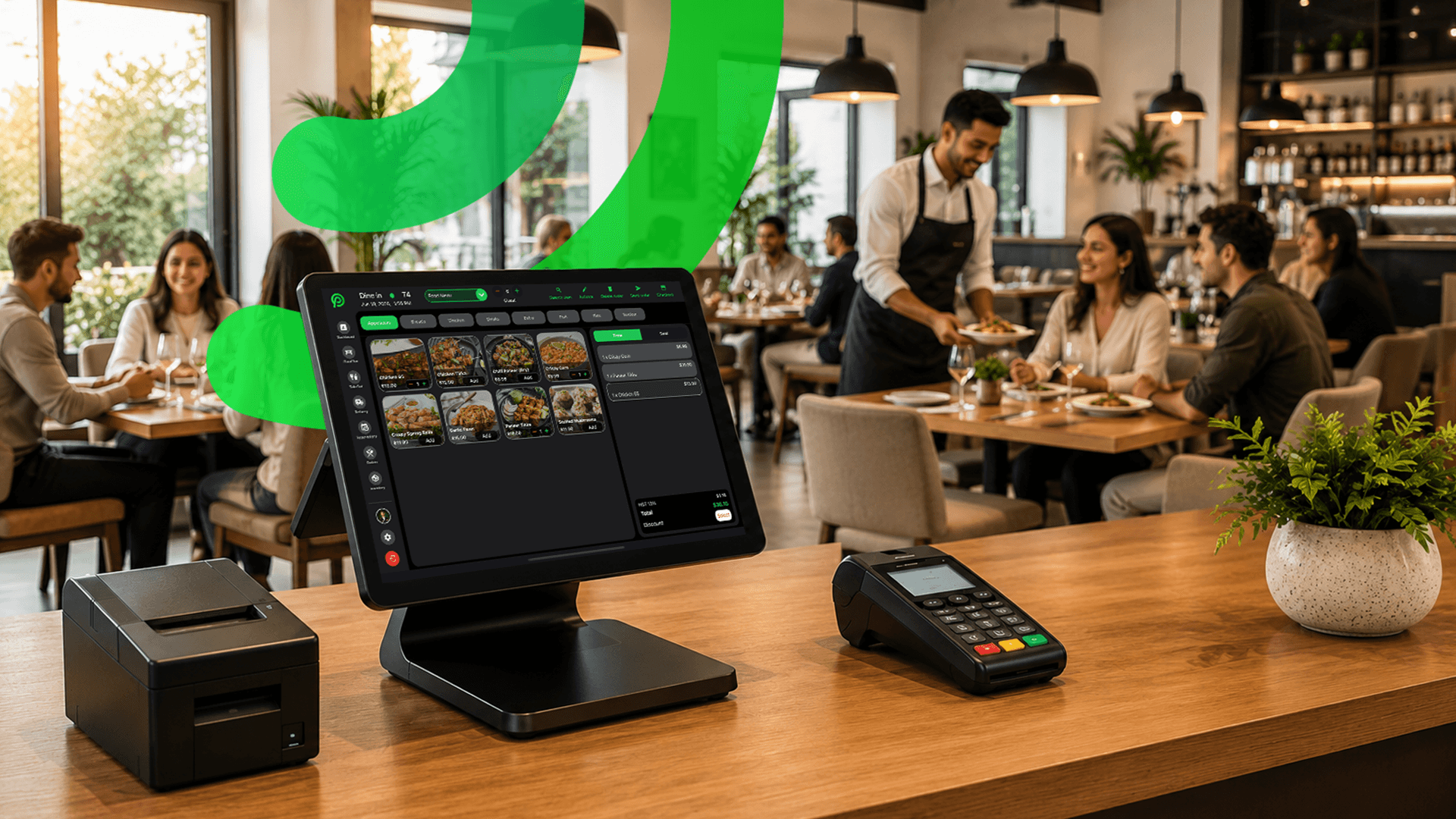
The other big win of BYOD is tableside ordering. Servers take the order on their phone at the table, and it goes straight to the kitchen printer or display. No walking back to a shared terminal, no re-keying from a notepad.
Servers open the table or order in the Platter app on their phone, and can close the bill there too. See order management and table management for how it works.
Practical tips for running a POS on your own devices
Consumer devices work well in a restaurant if you set them up for it.
Manage your devices
- Keep a simple list of every device, who uses it and where it lives.
- Use a passcode on each device and remove personal apps from shared ones.
- If you run several devices, a mobile device management (MDM) tool can push settings and lock devices down. Ask your IT provider whether it suits you.
- Decide whether servers use their own phones or restaurant-owned ones, and write the rule down.
Protect them
- Put every tablet and phone in a rugged case. Kitchens and bars are hard on glass.
- Mount counter iPads on a stand so they stay put and stay charged.
- Keep screens away from fryers, sinks and dish pits.
Keep them charged
- Give each station a charger, and keep spare cables.
- Charge handhelds between shifts, not during the rush.
- Check battery health on older devices. A tablet that dies at 8 pm is worse than no tablet.
Cover the whole room with Wi-Fi
- Walk the dining room, bar and patio with a phone and check the signal at each table.
- Patios and back corners are where coverage often drops. A Wi-Fi extender or an extra access point may be needed.
- Terminals pair over Wi-Fi too, so they need the same coverage.
Keep a backup device
Keep one spare charged tablet or phone with the Platter app installed and signed in. If a device breaks during service, staff can pick up the spare instead of waiting for a replacement. Changes you make in the back office reach every device in about 30 seconds, so the spare is always up to date.
When proprietary hardware might suit you better
BYOD is not right for every restaurant. Purpose-built POS terminals can make sense if:
- You want one vendor responsible for both the hardware and the software.
- You prefer countertop hardware built for a restaurant environment over consumer tablets in cases.
- You do not want to manage your own devices at all.
Some providers in Canada are built around their own hardware. As of October 2026, Toast's Canadian site lists Toast hardware such as the Toast Flex 3 terminal, and Toast may suit you if you prefer purpose-built restaurant hardware from one vendor (Toast comparison). Clover lists devices such as Station Duo and Mini, and Clover may be the better fit if you prefer all-in-one countertop hardware supplied with your processing (Clover comparison).
What to check before you buy devices
If you are buying new iPads or tablets for your POS, check a few things first:
- Operating system version: make sure the device can run a current OS version and will keep getting updates.
- Storage: leave room for the POS app, updates and anything else the device needs.
- Battery: handhelds need to last a full shift. Older devices with worn batteries may not.
- Screen size: larger tablets suit the counter and bar; phones suit servers on the floor.
- NFC: if you plan to use Tap to Pay, check the phone supports it.
We do not publish a minimum device list here, because models and OS versions change. Instead, we check your devices during the demo and tell you what works and what else you need.
FAQ
Can I use the iPad I already own for Platter?
Often, yes. Platter runs on iPad, iPhone and Android devices. Tell us your models and we check them during the demo.
Do I have to pay for every phone that runs the POS?
No. Phones running the POS are free and unlimited. Extra tablets are $10 a month each, and the main POS iPad is included in your plan.
Can I take card payments without a terminal?
For contactless payments, yes. Tap to Pay in the Platter app, powered by Stripe, works on supported phones. All other card payments run on Moneris terminals.
Does Platter work without internet?
Platter needs an internet connection today. Offline mode is coming soon.
Is hardware included with a Platter plan?
No. Hardware is not included, so you use devices you already own or buy your own. Your onboarding specialist helps you set up printers and terminals before you launch.

Ready to simplify?
See Platter in action
30-min demo. No commitment. See exactly how it fits your restaurant.
Book a Demo